

Onboarding Agent
Agent. Guides each stage and remembers where you stopped.
Onboarding is an app inside Ai1, the AI agent platform by MyZone AI. It walks you through each setup step in sequence and tracks what is done and what is still outstanding, so your agents and apps are ready to work for you.
The right order
Each step arrives when it is due, instead of a stack of guides you have to sort yourself.
Your voice, checked by you
You read sample writing in your brand voice and say yes before any agent uses it.
Pick up after a break
Come back days later and the next session opens on your unfinished step.
Talk to the agent
You can follow Onboarding on screen or ask the Onboarding Agent in chat or Slack. Either way, you carry on from your last step.
Agent. Guides each stage and remembers where you stopped.
Ask in plain words: "We paused last week. What is left for us to do?" The agent reads the app and answers.
At a glance
| What comes first | Your tools, then your business profile, brand voice and processes |
|---|---|
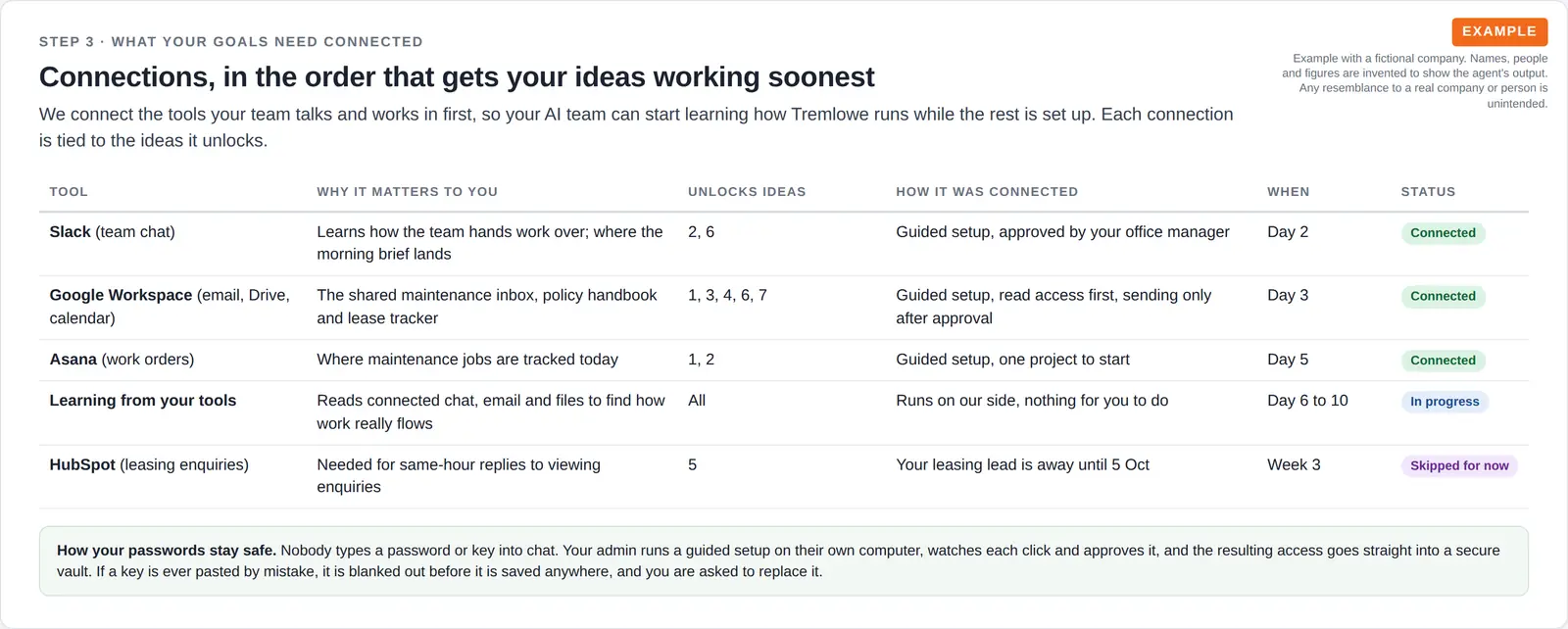
| First connections | Slack, Gmail, Asana and Google Drive; other accounts follow one by one |
| Your passwords | Stored in a secure vault and never displayed again |
| What you see | Steps finished, skipped and still to come, updated as you go |
| Your approval | Needed before anything in your setup changes |
Before you start
A help centre hands you articles and leaves you to choose the order. Onboarding takes you through setup in sequence, looks up your business before it puts questions to you, and draws out the habits your team never wrote down.
Example onboarding plan
Example with a fictional business. Names and figures are invented to show the kind of output you get.
What it was asked: Help us get set up with AI agents so tenants hear back the same day. Tell us how far along we are, what comes next and what you need from us.
| Before the kickoff | 12 facts researched. Your team checked them: 10 were right and 2 were fixed, so the kickoff hour went on goals. |
|---|---|
| Ideas | 3 of 7 ship first. The quick, high-value ones first, starting with turning maintenance emails into tasks. |
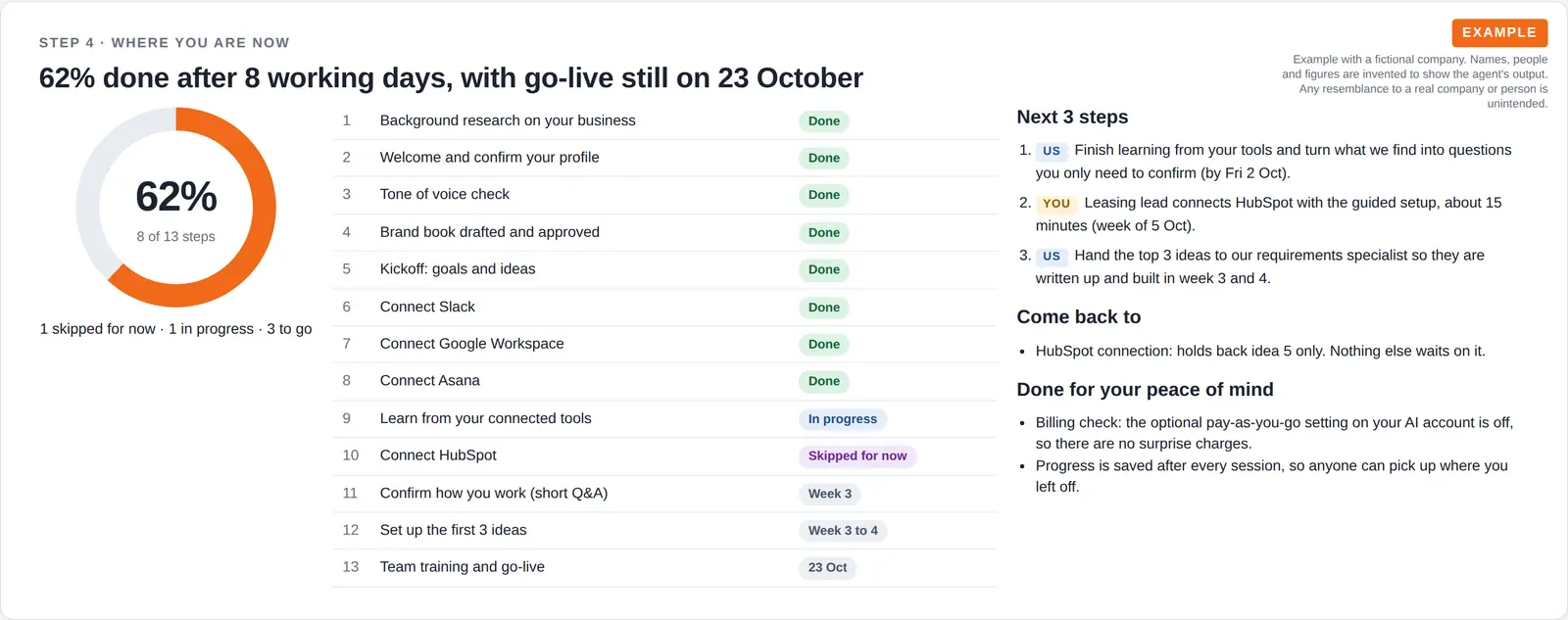
| Progress | 62% after 8 working days. The CRM connection moved to week 3, and go-live is still on schedule. |
How it works
You say yes to each change, and Onboarding keeps the order and your place for you.
You hear what lies ahead, then link your tools in a safe order.
We review your content and processes, and you answer short questions on anything unclear.
You read sample writing and ask for changes until it sounds right to you.
The Requirements Agent maps out everything else your team needs.
Built-in guardrails
Onboarding runs inside Ai1, under the same rules as every agent.
Better together
Where to go once Onboarding ends.

Agent. Picks up at discovery and notes everything you need.
The agents that keep day-to-day work running once you are set up.
Common questions
No. Each finished step is saved. When you return, you see what is done and the next step opens.
Yes, the optional ones. Skipped steps are noted, and you get a reminder to finish them later.
Yes. They are stored in a secure vault and never displayed again, and messages are checked for passwords pasted by mistake.
No. Each change is written as clear instructions for a desktop AI assistant that you control, and you check and approve the result.
Book a call and we will walk you through how Onboarding gets your tools, your business profile and your brand voice ready.